
Auto-tile
Windows arrange themselves as they open and close, in Grid, Columns, Rows or Main + side.
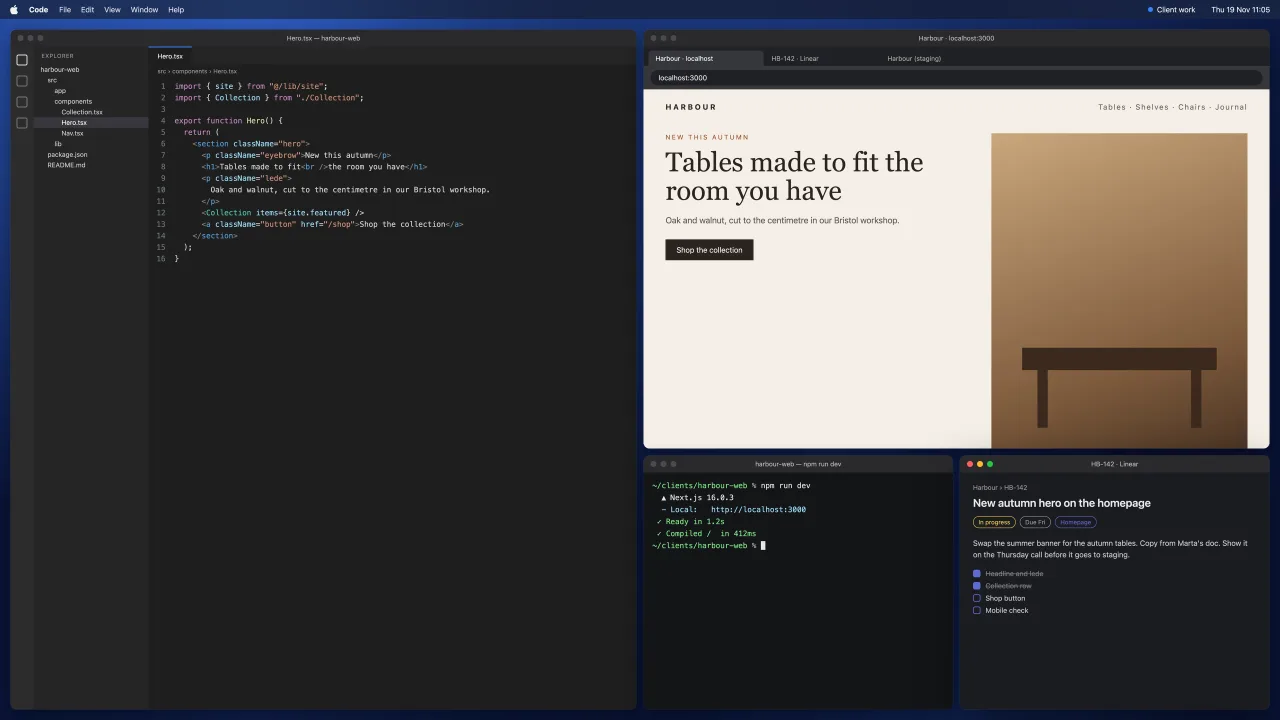
Close a window and the rest reflow. PaneFold learns each app’s minimum size, floats what can’t fit, and leaves dialogs, sheets and fixed-size windows alone. There’s no config file.
- Main window at half, 60% or two-thirds
- Stacks when a screen is full, or float in the middle
- ⌘-drag a window onto another to swap them
- Resize with keys, or by dragging a shared edge
- Rules per app: float, exclude, or keep in a fixed spot
- Hold ⇧ while dragging to see drop zones
The layouts
| Layout | Good for |
|---|---|
| Grid | Several windows of equal weight |
| Columns | Reading side by side |
| Rows | Vertical screens |
| Main + side | One window you’re in, others to glance at |
| Main on top | Vertical screens with a main window |
| Three columns, Four columns | Ultrawide screens |
| Centre focus | Ultrawide: main window in the middle, columns either side |
What it leaves alone
Dialogs, sheets, panels and fixed-size windows float rather than being forced into a tile. PaneFold learns the smallest size each window can take, once, and lays it out at a size it accepts, so there’s no gap or overlap and no window fighting back.
When the screen is full
New windows can wait in a stack behind the tile you’re using, and a key moves through them. Or have them float in the middle. Either way, the rest don’t shrink.
Questions
Can I keep one app out of tiling?
Yes. Rules per app can float it, leave it alone, or keep it in a fixed spot.
How to tile windows on a Mac · Setup
Next: Scrolling strip